Help & Guides
Find your next step.
Clear, practical guides for listening, creating, hosting, and making the most of your VIBESXS experience.
Start here
What do you want to do?
VIBESXS is built around one idea: name the mood, and everything follows it — the music, the visuals on screen, and, if you connect it, the lights in your room. Nine completely different ways to live inside that mood: a DJ that mixes a whole set for you, a stage of dancers who move to it, a performer who sings it back to you line by line, generative art that pulses with the track’s real energy and beat, and more — all sharing one mood system, so nothing ever feels disconnected as you move between them. There’s nothing else quite like it. This page is written for listeners and users who are not familiar with the VIBESXS Ecosystem, so you can get straight to using it with confidence. Looking for behind-the-scenes stories and deeper reads instead? Visit the Mood Hub. Tap any topic below to jump straight to it — each one expands right where you are, and a “back to top” link sits at the bottom of the section you’re reading.
- Exploring the Homepage
- App-by-App Guide
- Virtual Rooms
- Choosing the Right App for You
- The Mood System
- Plays & Token Allotments
- Rewards
- Account & Login
- Your Vibe: Your Personal Dashboard
- Lighting
- FAQ / Troubleshooting
- Vibathlon Trials (Free Taster)
- Vibathlon Battle (Beta)
- Vibathlon Duet (Beta)
- Music-Q (Beta)
- Still Need Help?
Exploring the Homepage
The homepage gives you two different ways to get moving, plus a couple of extra tools tucked into the corners. Here’s what everything on it actually does.
Pills vs. cards
The six rounded pills near the top (Follow, Check, Change, Track, Illuminate, Celebrate) are shortcuts — each one jumps straight to a specific action, no browsing required. The mood cards below them work differently: picking one doesn’t start music immediately, it reveals a second step where you choose how you want to experience that mood — Immersive, Dancer, Performer, Visualizer, Mixer, or Playlist. Twelve mood cards — one for every mood on the platform.
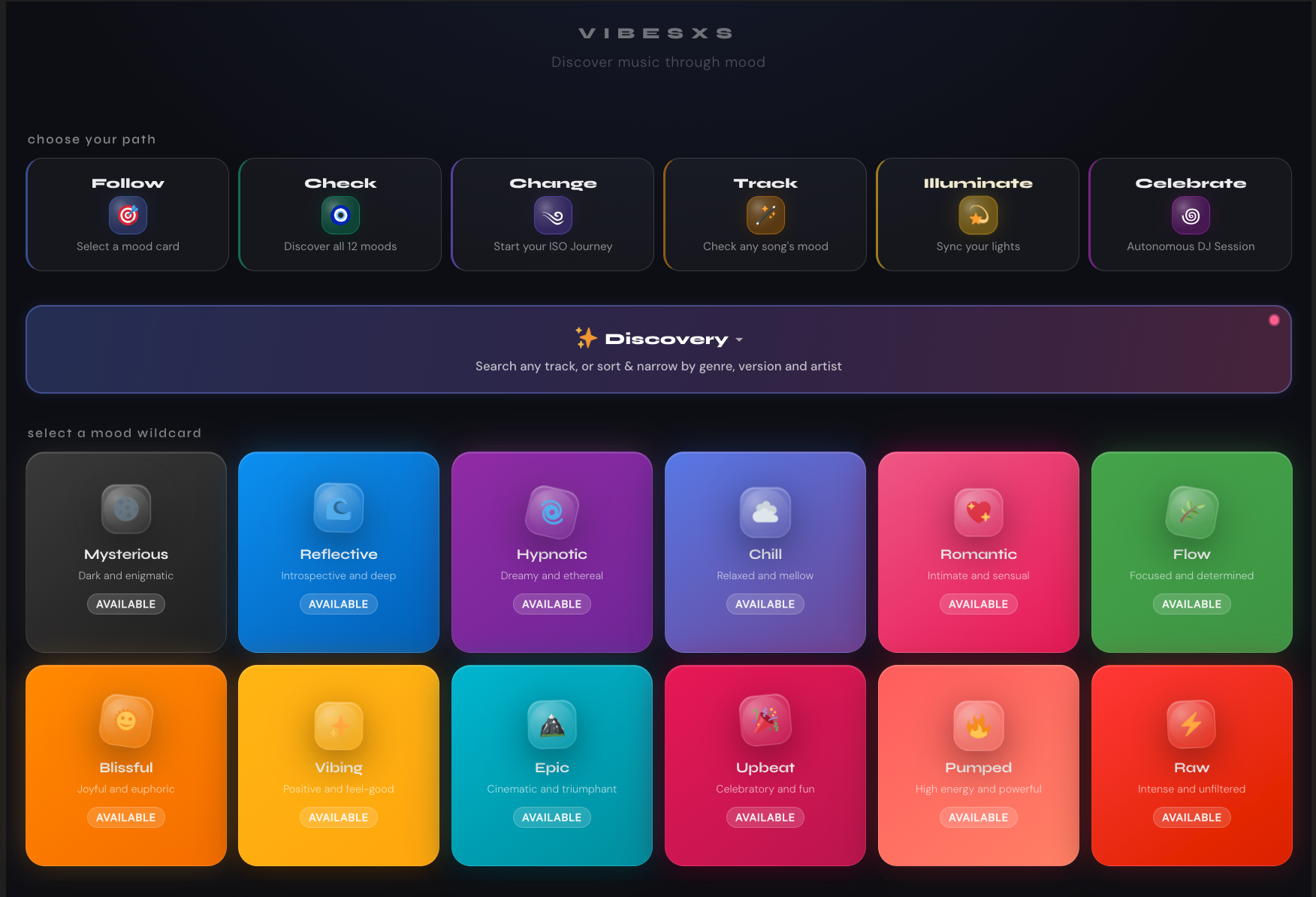
- Follow — jumps down to the mood cards.
- Check — opens Mood Discovery: browse all 12 moods laid out as a grid, each showing a live track count, so you can see what’s got plenty of tracks before you pick.
- Change — starts an ISO Journey.
- Track — opens the song mood look-up tool (see below).
- Illuminate — takes you to lighting setup.
- Celebrate — starts an Autonomous DJ session.
The Discovery panel
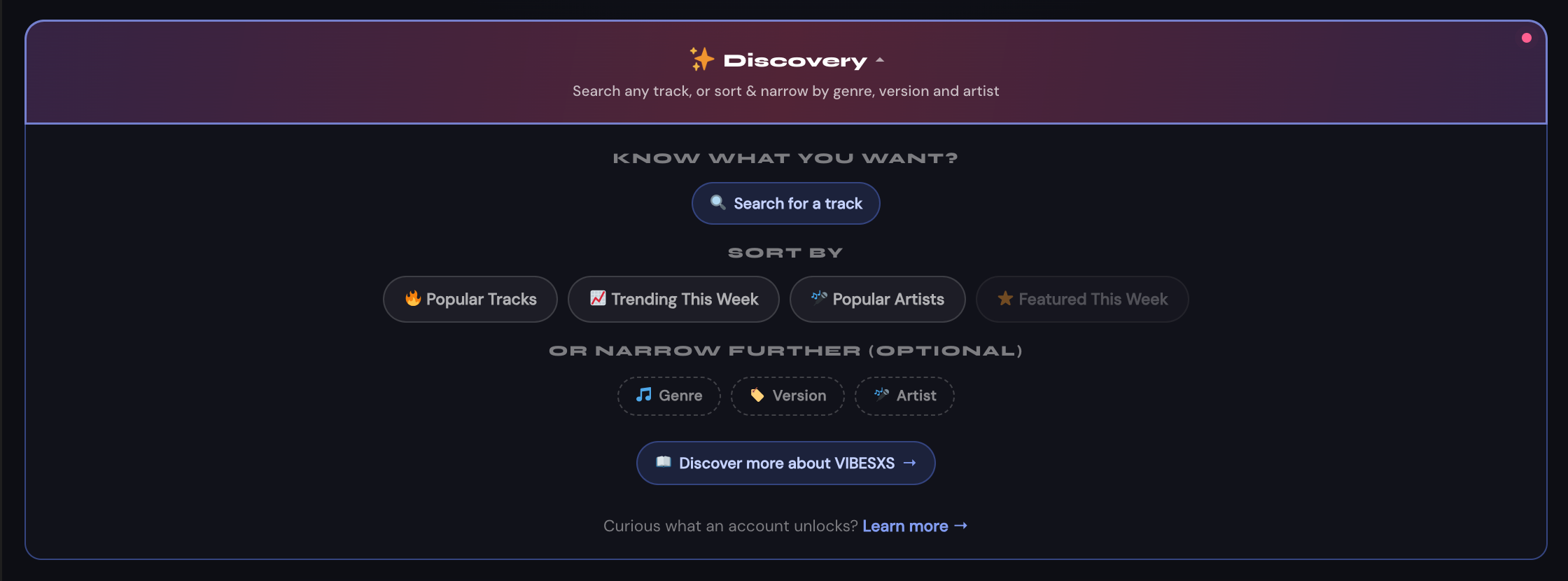
Sitting right between the pills and the mood cards is Discovery — a purple bar you tap to open. It’s a different tool from everything around it: instead of starting from a mood, Discovery is for when you already have something specific in mind. Tap it open and you can search for an exact track by name, sort what’s showing by popular, trending, or featured, or narrow the list further by genre, version, or artist. Nothing here requires an account, and it’s a completely separate tool from Mood Discovery (the “Check” pill above) — Discovery searches and filters; Mood Discovery browses by mood.
Check any song’s mood
The Track pill opens “Track your vibe” — a simple tool for checking the mood of a song you already know, rather than discovering something new. Type in a song title and artist, and it looks the track up in the VIBESXS catalogue. If it finds a match (exact or close), you’ll see the VIBESXS mood it’s tagged with, a one-line vibe descriptor, and — when available — direct links out to that track on Spotify or Deezer. No account needed.
The Vibe Oracle
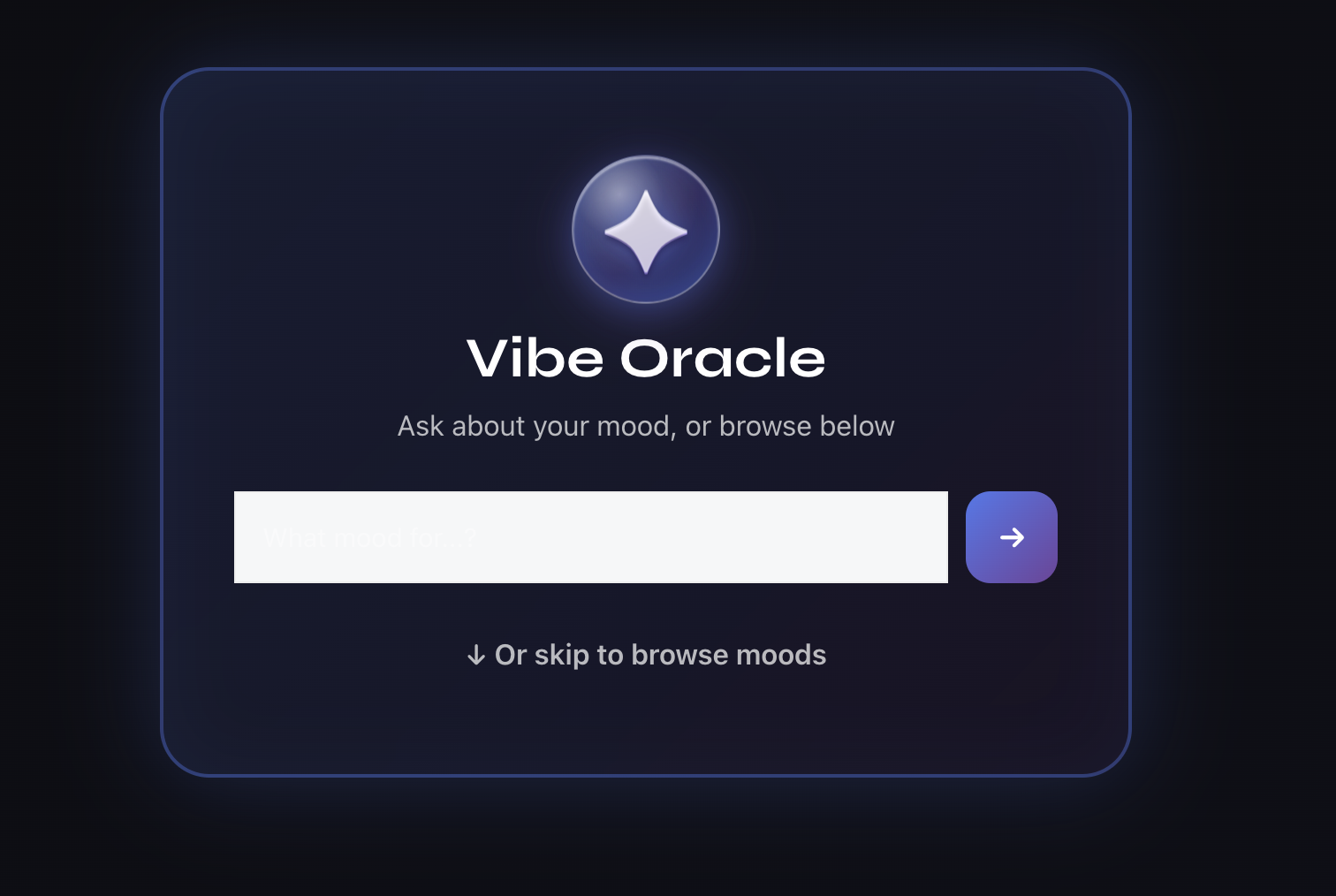
Look for the small glowing orb in the bottom-right corner — that’s the Vibe Oracle, a chat assistant available across most of the platform. Ask it about the mood system, ISO Journey, lighting, DJ features, or (once you’re logged in) your own listening stats, and it can hand you a direct link to the app it just talked about. No account needed to use it.
App-by-App Guide
Nine listening and creation apps, plus an always-on radio stream — each with its own icon, shown consistently in menus and shortcuts across the platform (Mood Discovery and Immersive Player currently share the same one). Here’s what each one actually feels like to use, and when to reach for it.
Autonomous DJ (A-DJ) ꩜
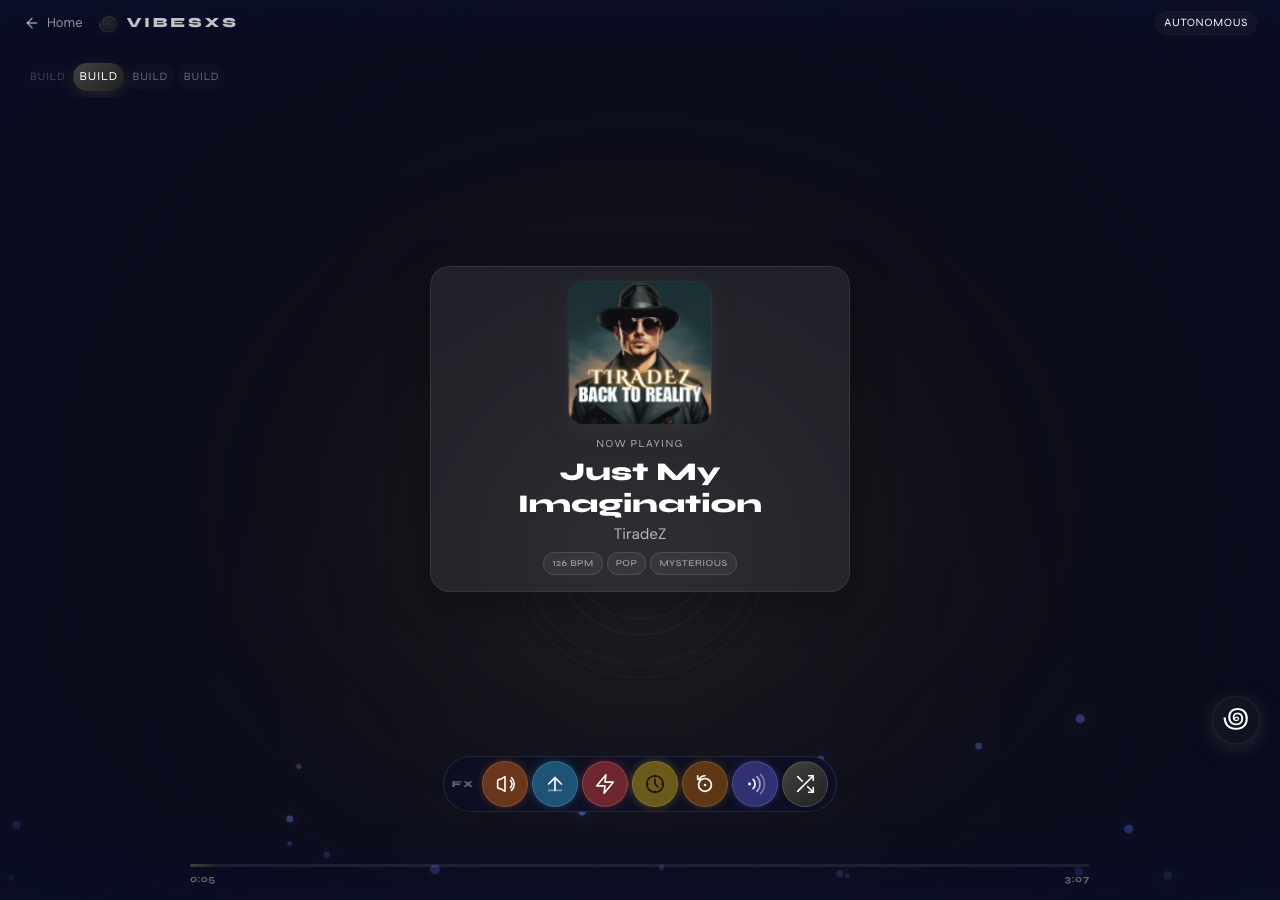
Choose this when you want a real DJ set running behind you — a party, a workout, a work session — without touching a single control. Pick where you’re walking in — easing in low-key, or ready to go straight to peak energy — and how you want the set to build, and Autonomous DJ takes it from there: mixing one track into the next automatically, with genuine crossfades and the occasional live FX flourish, for as long as you want to listen. You can still skip a track or nudge the energy up or down at any time.
The glowing orb on screen isn’t just decoration — it pulses brighter with the track’s real energy, so you can read the room at a glance. And tucked in the corner of the player is a small glyph that opens a live session panel: how far through the session you are, time remaining on the current track, what’s up next, your recent track history, and session controls, all in one tap.
Want to share your set with someone else, live? See Virtual Rooms below for Vibe Rooms.
Start an Autonomous DJ session →
ISO Journey ༄
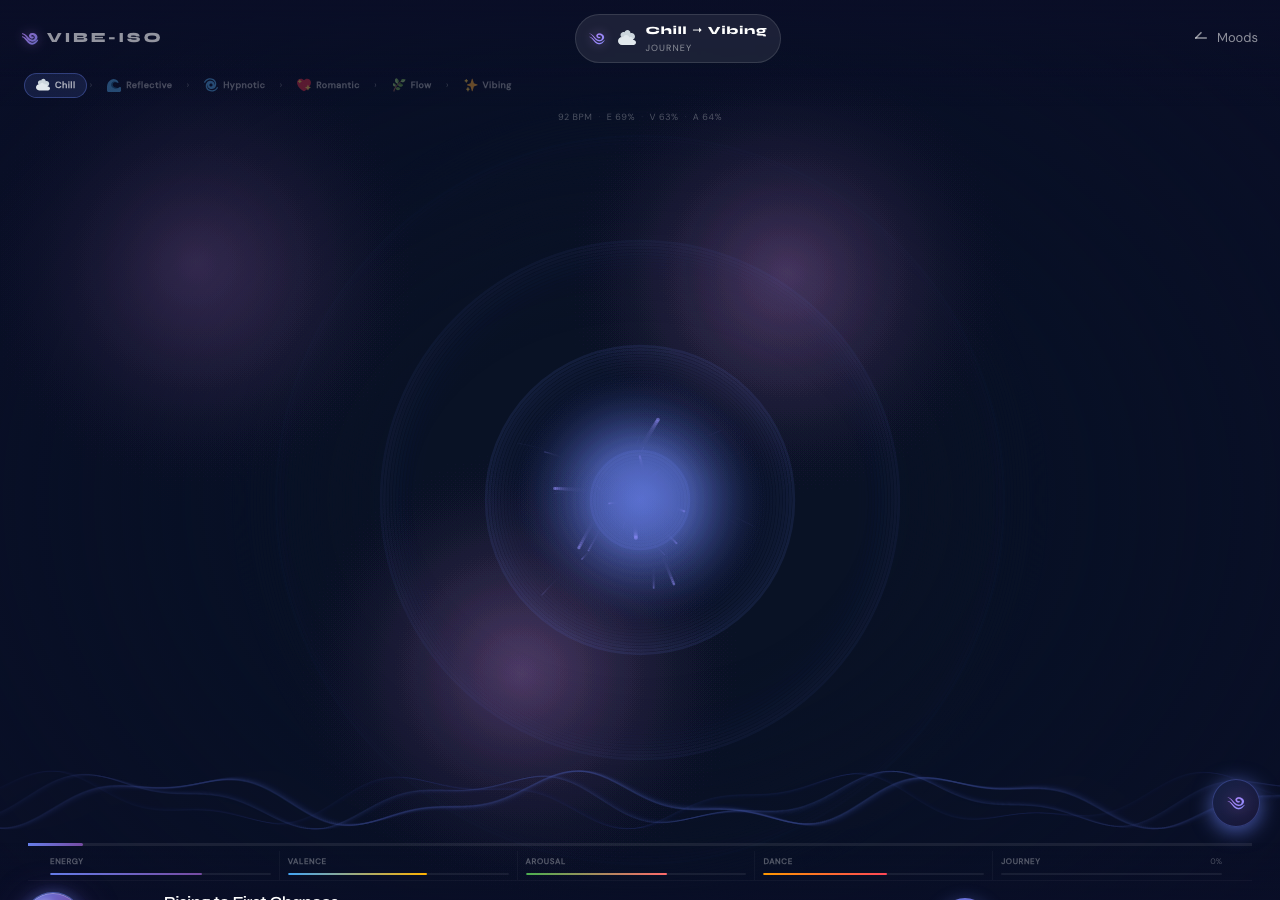
Choose this when you want your whole session to go somewhere — building steadily to a peak, or winding all the way down — rather than just picking one song and hoping the next one fits. A short setup checks in on where you’re starting from, where you want to end up, how much time you have, and any preferences, then hands you a full journey built to match, moving through it one track at a time.
Like Autonomous DJ, ISO Journey has its own glyph on screen showing real-time session data — which stage of your journey you’re on and how many remain, which track you’re on within that stage, and controls to save, share, or favourite the journey as it plays.
Mood DJ Mixer 🎛️
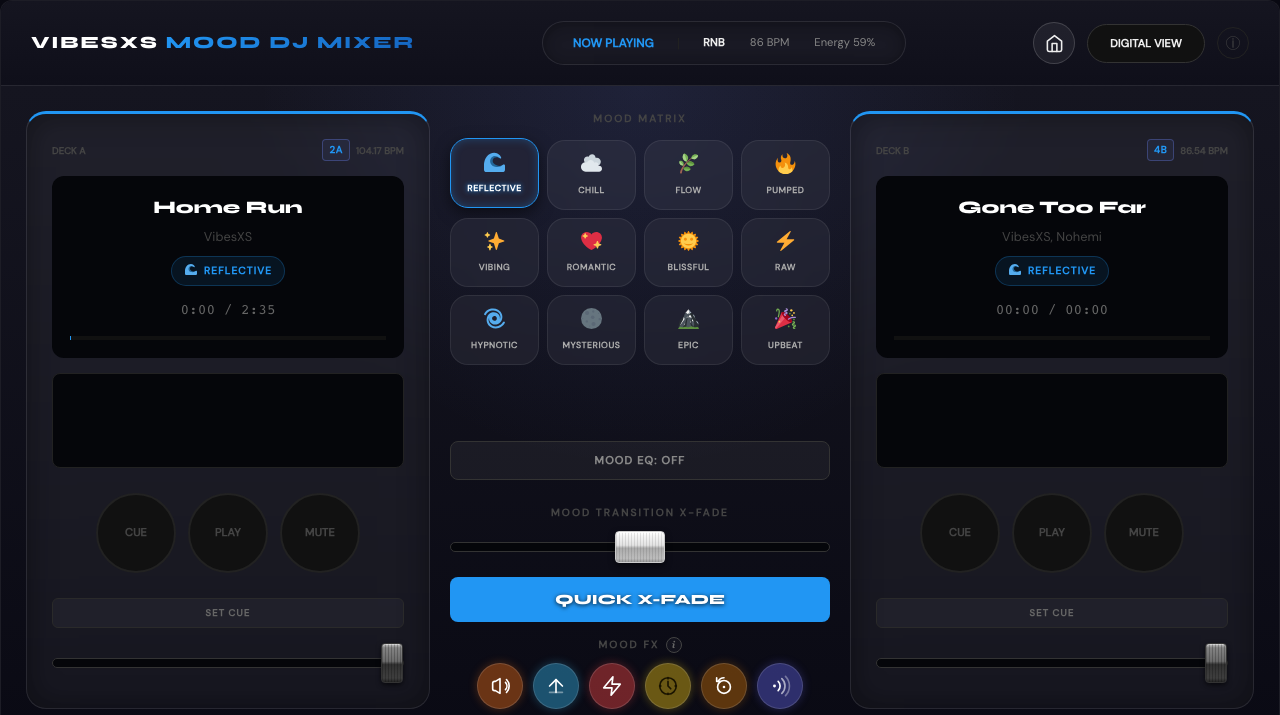
Choose this when you want real hands-on control — cueing tracks, beatmatching, and crossfading between two decks yourself, the way a real DJ would. It’s the app to reach for when Autonomous DJ feels too hands-off and you’d rather be the one doing the mixing. No account required — jump straight in.
Mood Dancer 🕺
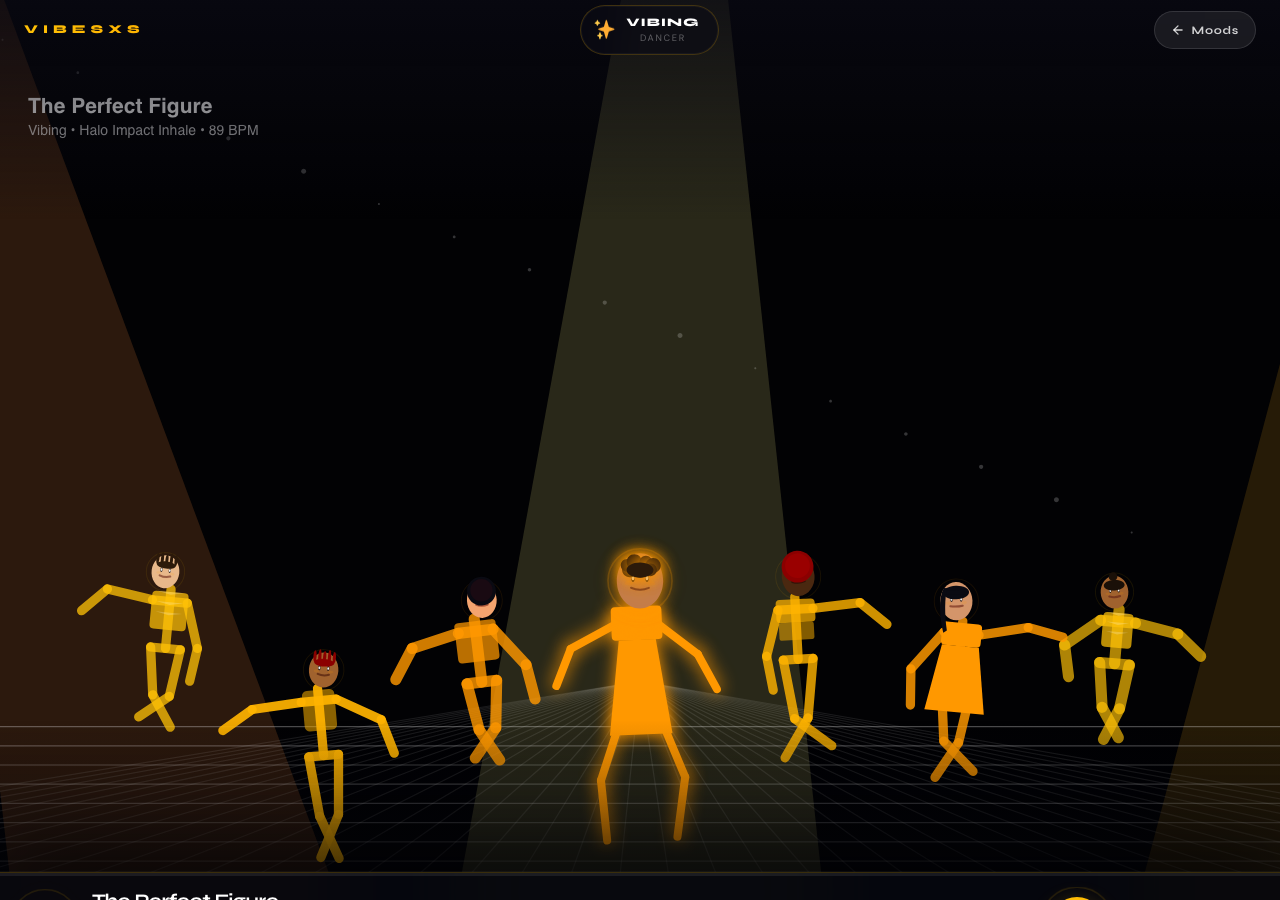
Choose this when you want to move. A crowd of on-screen dancers performs choreography built around your chosen mood’s energy, including solo spotlight moments — one dancer takes centre stage for a signature move, then repeats it a second time in slow motion so you can actually catch the detail, before the group comes back together and keeps going. If you’re able to, you’re welcome to dance along — it’s entirely optional, and just as good to watch.
Mood Performer 🎭
Choose this when you want to sing along, not just listen. An on-screen performer sings in time with the track while the lyrics scroll along with them, so you can follow — or join in — line by line, note by note. Built for the songs that make you want to perform them yourself, not just play them in the background.
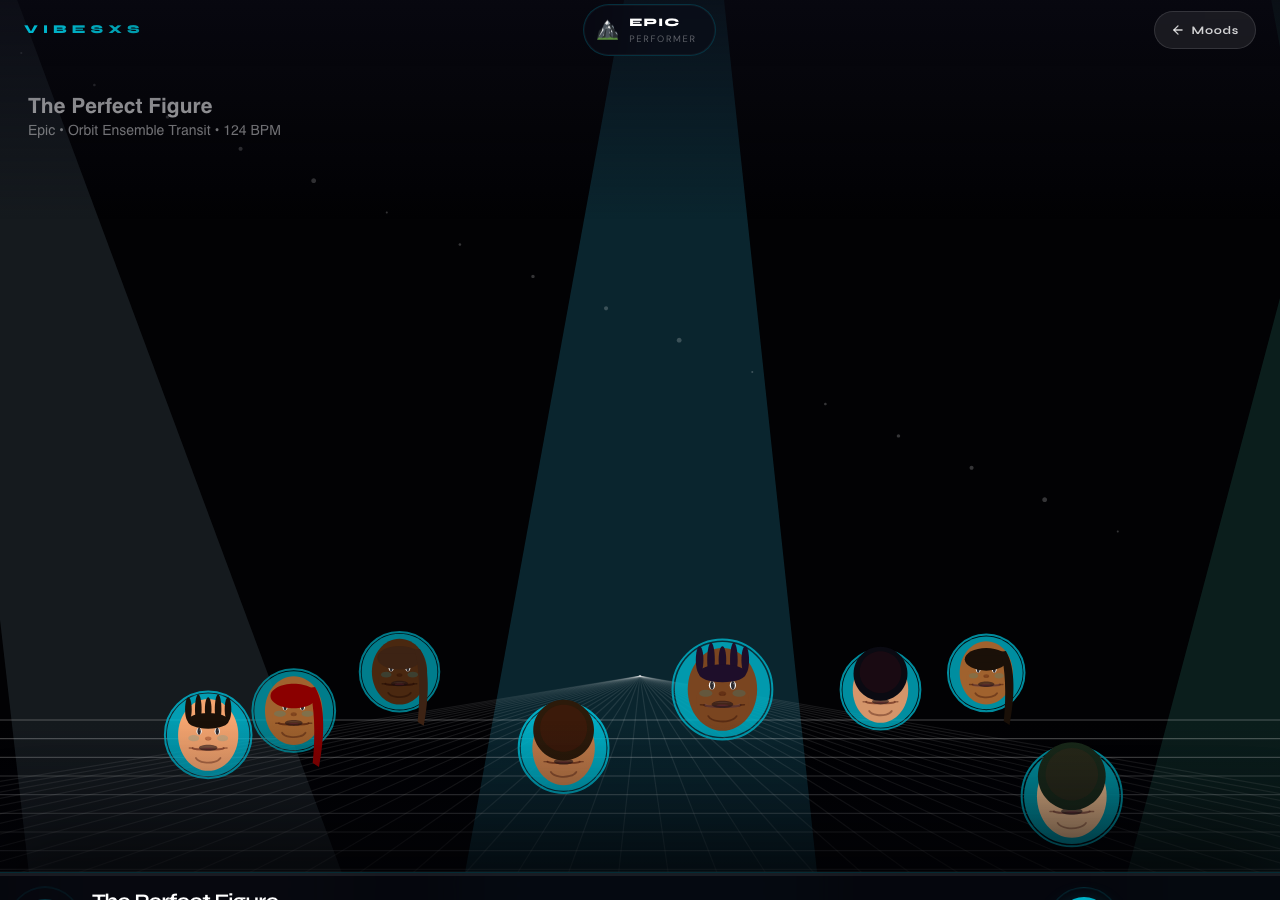
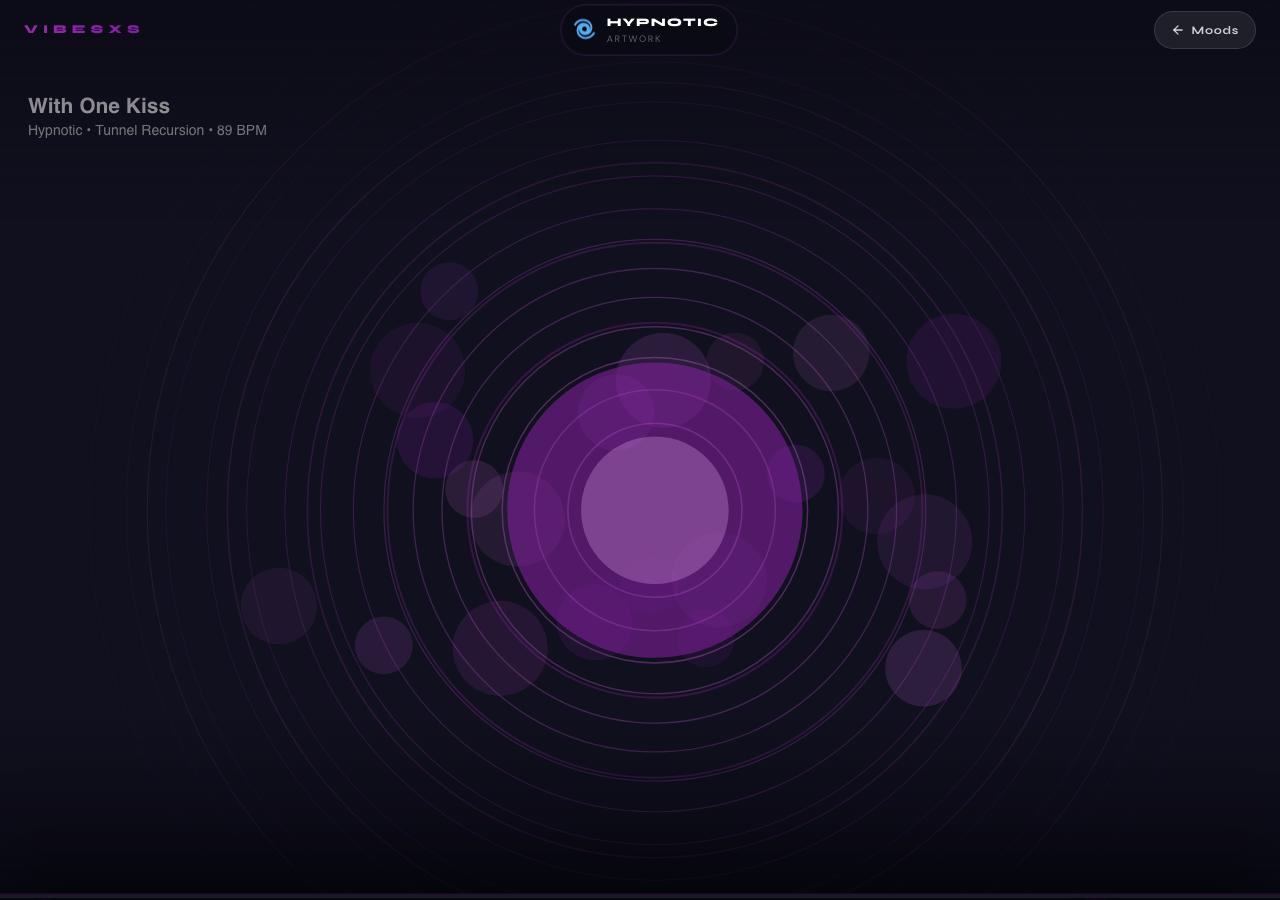
Mood Artwork 🎨
Choose this when you want to watch instead of just listen. Generative visuals — pulsing, shifting rings of colour and light — respond directly to the track’s real energy and beat as it plays, so what you see on screen isn’t decoration layered over the music, it’s a direct read of what’s actually happening in it. A screen worth watching on its own.
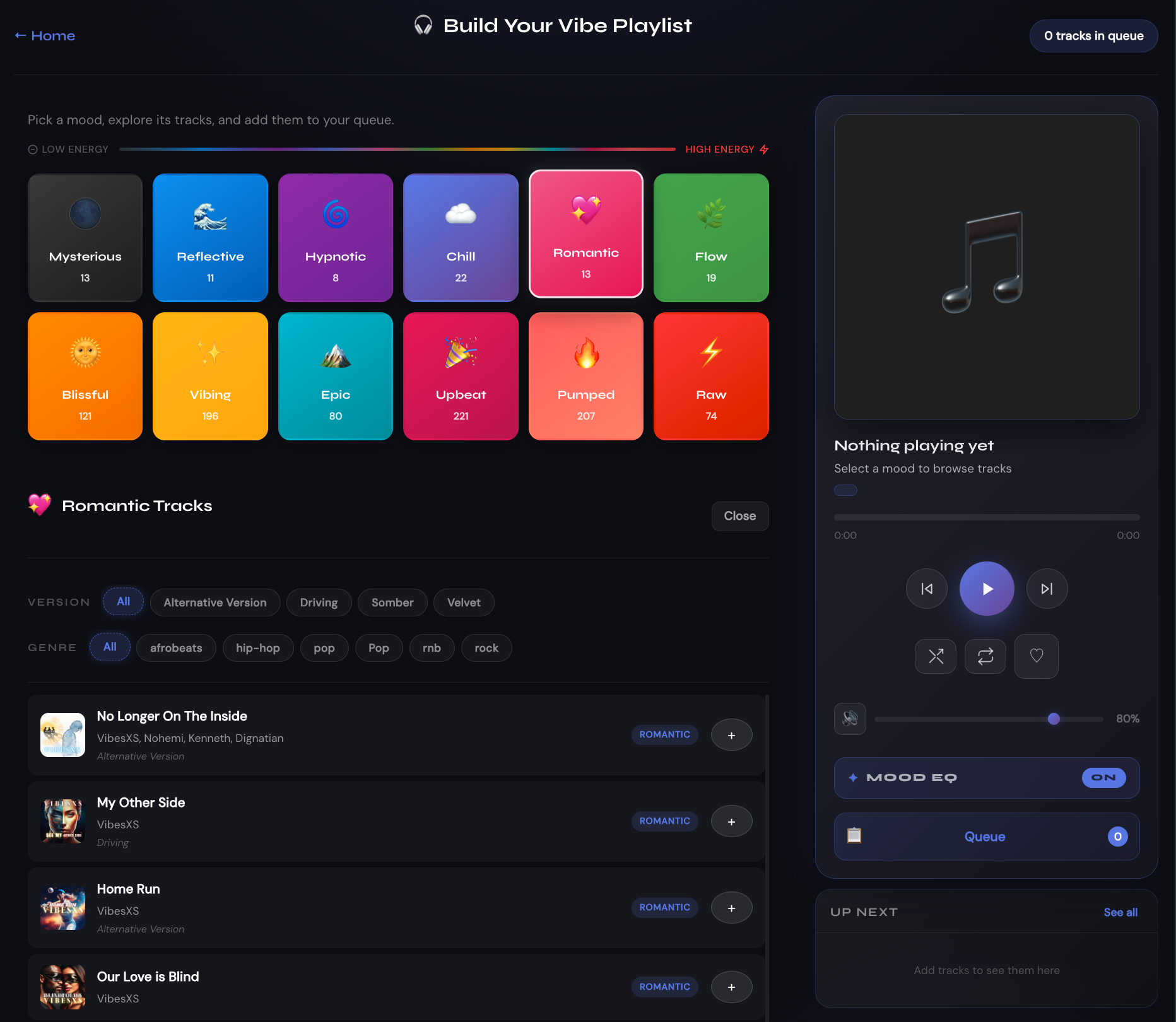
Playlist Builder 🎧
Choose this when you already know what you want and would rather curate it yourself than let the platform choose for you. Build a playlist track by track and save it for later.
Building it with someone else instead of solo? See Virtual Rooms below for Shared Queues.
Open Playlist Builder → — browse and preview freely with no account; you’ll only need to sign in when you want to save a playlist for later.
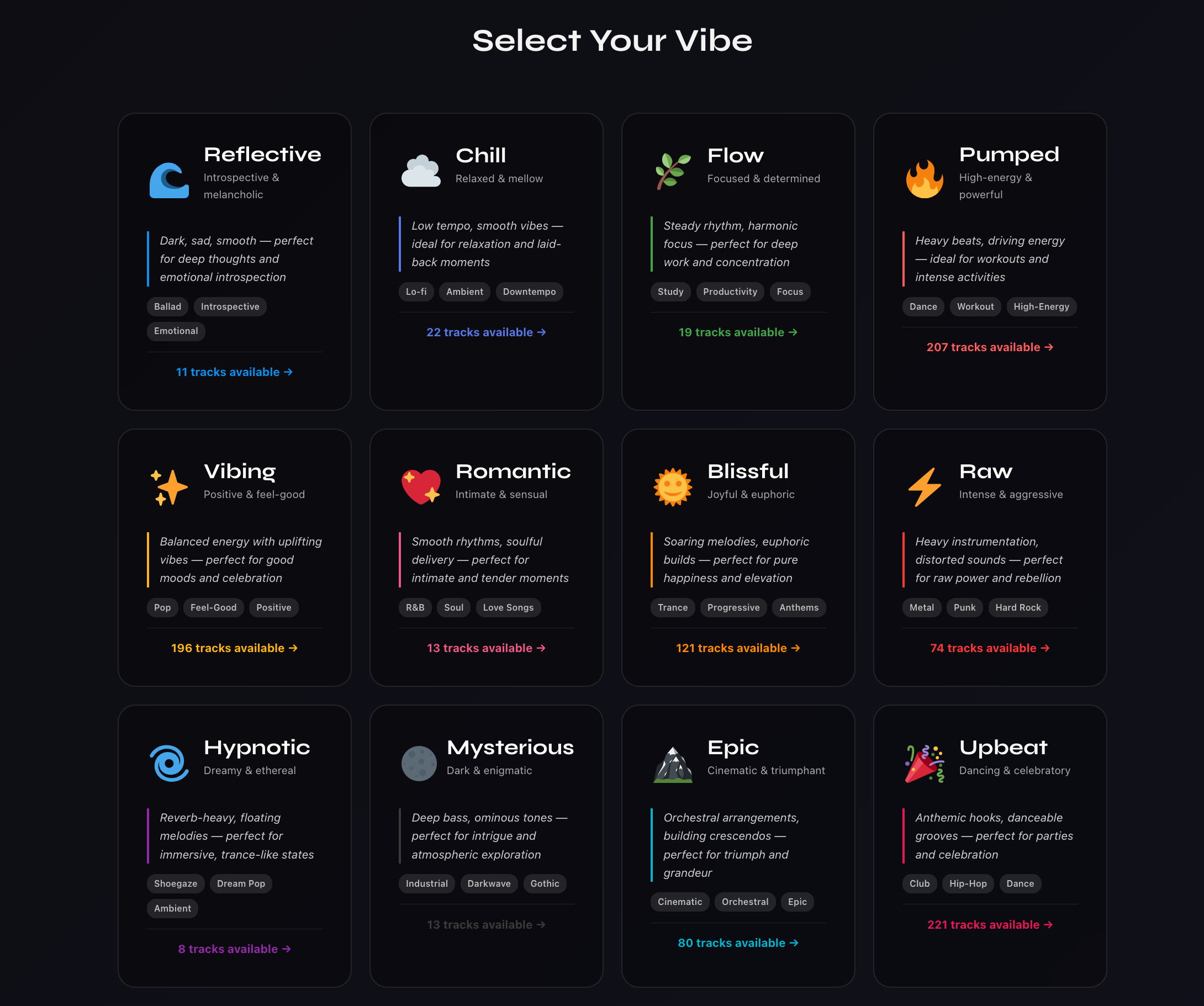
Mood Discovery 🎵
Choose this when you’re not sure what mood you’re in yet. Browse all 12 moods laid out as a grid — each one shows a live track count, so you can see what’s got plenty to offer before you commit. Tap a mood and you’re straight into listening. (Looking for the search-by-name, sort-and-filter tool instead? That’s the Discovery panel on the homepage, covered above — a different tool for a different job.)
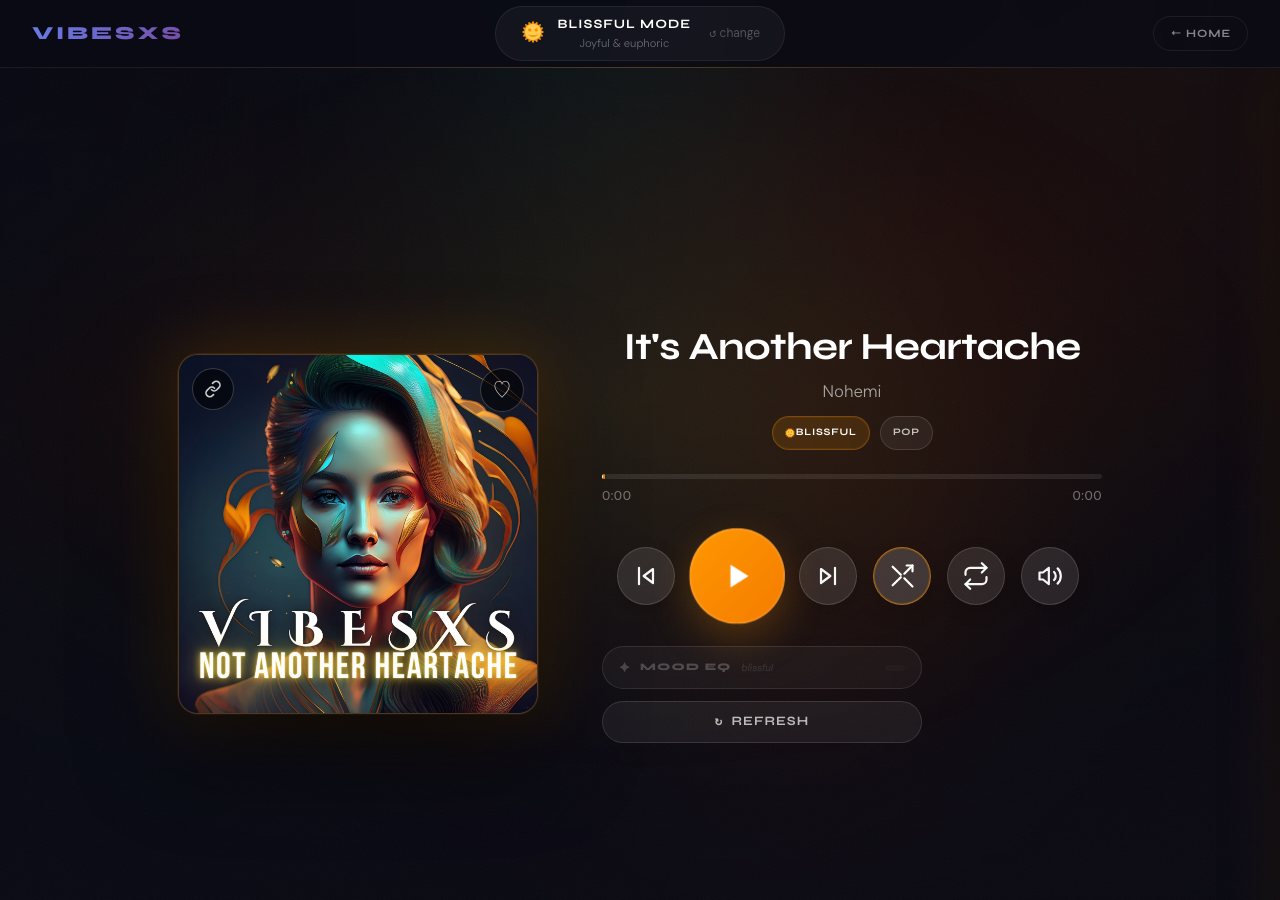
Immersive Player 💧
Choose this when you just want music, right now, no decisions. Pick a mood and go — no session setup, no preferences, just a focused single-mood player. This is where the “Immersive” option lands after you select a mood card, and it’s also what “Check” and Mood Discovery hand off to once you pick a mood there.
Plus: always-on radio
Outside the nine apps above, there’s also a tenth, always-there option that needs no picking at all:
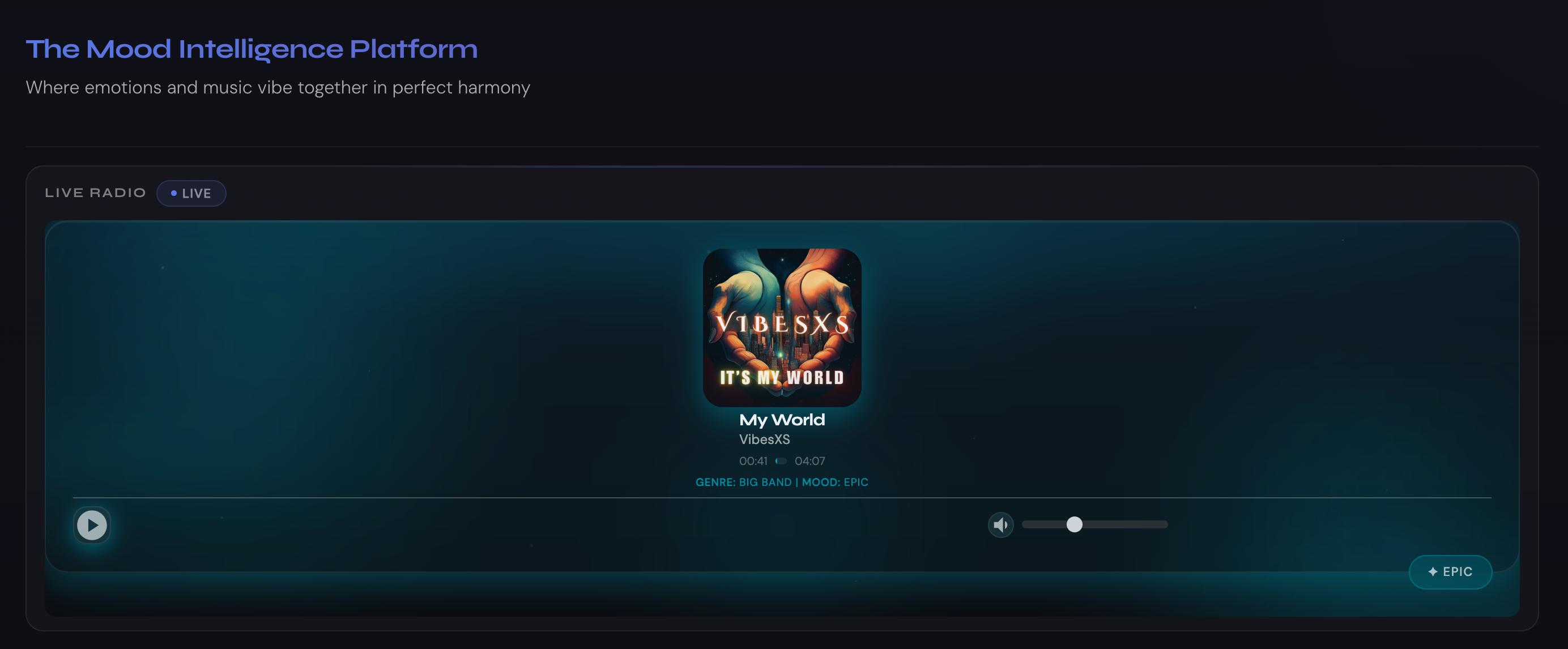
Live Radio 📻
Choose this when you don’t want to choose at all. VIBESXS Radio is a continuous, always-on stream — no mood to pick, no session to set up, no account needed. It’s playing in the footer of every page on the site, any time, and you can also open it directly — on its own, full-screen, no site chrome around it — at radio.vibesxs.com.
Virtual Rooms
A few features let you bring other people into what you’re doing — someone following your live set in real time, a whole party listening together for free, a fuller shared space with camera and screen share, a private room for two, a playlist you build together, or just letting a friend know you’re listening right now. Here’s what’s available and how each one works.
꩜ Vibe Rooms — a shared Autonomous DJ set
Start an Autonomous DJ session, open the Session menu, and choose Start a Vibe Room to turn it into a live broadcast — anyone with the link hears the exact same set, staying in sync as it plays. Being signed in is all it takes to listen; you don’t need to already be friends with the host.
- Free to host and free to join — no tokens spent by anyone
- Schedule a start up to 30 minutes ahead; early arrivals see a countdown
- Live listener count, plus quick reactions everyone can see
- Automatically saved as a replay once it ends, for you and everyone who was there
💃🕺 Vibe Party Room — Autonomous DJ for a whole party
Bringing a real party into it, not just one other listener? A Party Pass turns a Vibe Room into a Vibe Party Room for the length of your event.
- Free listening for up to 25 guests — no tokens spent by anyone
- Live in-session chat with customizable reactions
- In-room games for host and guests — Trivia, Mysteria, Bouncing Mood Rings, and more, with a shared leaderboard (new games added regularly)
- The Vibe Party Planner included — guest list, RSVPs, and a shared checklist
- One-time purchase
See the Party Pass flyer for the full rundown, or head to Join to get one.
Vibe Space — camera, screen share and a live DJ mixer
Want more than music together — actually seeing each other, sharing your screen, or mixing a real two-deck DJ set live for the room to hear? A Space Pass opens a Vibe Space for the length of your session.
- Free listening for up to 25 guests — no tokens spent by anyone
- Host camera and screen share, plus a live DJ mixer you control and broadcast in real time
- In-session chat and reactions you choose yourself
- Pick what plays — Autonomous DJ, one of your playlists, a Vibe-ISO journey, or your own live mix
- Choose who can join — anyone with the link, or guests you approve one by one
- Book by the hour, up to 4 hours, or a flat rate covering the full 4 hours
Get one from the Your Passes section on Your Vibe.
🫶 Date Night Pass — a private room for two
Want a little space for just the two of you? A Date Night Pass opens a private online room for two people, wherever each of you is — one pass, two people, two places. One of you buys the pass and invites the other; your partner never pays.
- Private two-way voice — you can both speak, and each of you can mute yourself
- Shared music, included in the pass — no tokens spent by either of you
- Games for two — Trivia and Mysteria together, plus Rapid Pace, Mood Match, Mood Ring, Sprinter and Vibe Shuffle, each scored on its own
- Room chat with GIFs, and you can choose to snap and send a still photo — there is no live video
- The same romantic look for both of you, whatever mood each of you has picked
- A food-delivery link for the buyer before the date, to plan dinner from your separate places
- Two hours, starting when you are both in the room — a countdown shows how long is left
- One-time purchase for both of you
How it works. Get a pass and choose when you want to meet. Invite your person by email — they sign in with that same email address to accept, and only the two of you can ever enter the room. You can open the room up to 15 minutes before your start time to set up the music, and your partner can join at the start time. Once you are both there, the buyer starts the date and your two hours begin; setup time never counts against them.
Good to know. The two hours are fixed and can’t be extended. If either of you drops out, the clock keeps running, but you can both rejoin until time is up. If the date hasn’t started within 15 minutes of your start time, the pass stays unused and you can reschedule it — an unused pass doesn’t expire. You can change the invited partner, or re-send the invite, any time before the date starts. The pass is non-refundable.
See the Date Night Pass flyer for the full rundown, or get one from the Your Passes section on Your Vibe.
🎧 Shared Queues — build a playlist together
Playlist Builder doesn’t have to be a solo job. Add a few tracks, open your queue, and tap Share Queue to turn it into one that anyone with the link can help build.
- Additions and reordering show up for everyone without needing to refresh
- Shared by link, just like a Vibe Room — no need to already be friends
- Only the person who started the queue can remove a track someone else added
- Save your own timestamped copy at any point, even mid-build
🧑🏻🤝🧑🏾 Friends
Friends is its own section on Your Vibe — a lasting connection, separate from Vibe Rooms and Shared Queues, since you can share either of those with anyone regardless of whether you’re friends. To add someone, you’ll need their exact username — VIBESXS doesn’t have a public directory to search or browse. Send a request, and they’ll see it waiting the next time they check their own Friends list, with the choice to accept or decline. Either of you can remove the connection again later, any time.
🎧 See when a friend’s listening
Once you’re friends with someone, you can see when they’re actively listening — right there on Your Vibe, next to their name, along with what they’re playing and which app they’re in. Tap it to jump into that same app yourself. Sharing your own listening activity this way is on by default; there’s a simple switch in the Friends section if you’d rather keep it off.
Choosing the Right App for You
Nine apps plus a live radio stream, one platform — here’s a quick way to narrow it down:
- Want a full set playing behind you with zero setup? Try Autonomous DJ.
- Want your whole session to build toward something, or wind down? Try ISO Journey.
- Want real hands-on control over the mix? Try Mood DJ Mixer.
- Want to move? Try Mood Dancer.
- Want to sing along? Try Mood Performer.
- Want to watch, not just listen? Try Mood Artwork.
- Want to curate your own set? Try Playlist Builder.
- Not sure what mood you’re in yet? Try Mood Discovery.
- Just want music, right now, no decisions? Try the Immersive Player.
- Don’t want to choose at all? Turn on Live Radio.
| App | What it does | Account needed? |
|---|---|---|
| Autonomous DJ ꩜ | Sit back — a full DJ set mixes itself, for as long as you want to listen | No |
| ISO Journey ༄ | A guided musical journey that builds and shifts along an arc you choose | No |
| Mood DJ Mixer 🎛️ | Hands-on two-deck mixing with real DJ controls | No |
| Mood Dancer 🕺 | Choreographed dancers, soloist spotlight moments, and an open invitation to join in | No |
| Mood Performer 🎭 | Sing-along performances with scrolling lyrics | No |
| Mood Artwork 🎨 | Generative visuals driven by the track’s real energy and beat | No |
| Playlist Builder 🎧 | Build and save your own custom playlist | Only to save |
| Mood Discovery 🎵 | Search, sort, and browse tracks across all 12 moods | No |
| Immersive Player 💧 | A focused, single-mood listening experience | No |
| Live Radio 📻 | An always-on stream in the site footer — no picking required | No |
The Mood System
Everything on VIBESXS starts with one question: how do you want to feel? Instead of picking a genre or an artist, you pick a mood — and that choice shapes the music you hear, the visuals on screen, and (if you’ve connected it) your lighting, across every app on the platform. Here are the 12 moods:
- 🌑 Mysterious — dark and enigmatic
- 🌊 Reflective — introspective and deep
- 🌀 Hypnotic — dreamy and ethereal
- ☁️ Chill — relaxed and mellow
- 💖 Romantic — intimate and sensual
- 🌿 Flow — focused and determined
- 🌞 Blissful — joyful and euphoric
- ✨ Vibing — positive and feel-good
- 🏔️ Epic — cinematic and triumphant
- 🎉 Upbeat — celebratory and fun
- 🔥 Pumped — high energy and powerful
- ⚡ Raw — intense and unfiltered
You can also set one of these as your own mood icon in Your Vibe — it’s how you’re represented around the platform, and it’s completely optional.
Plays & Token Allotments
Every time you play a track, it uses one play from your personal allotment. Guests get a small amount with no account needed; a free account raises that; Premium and Elite give you a much bigger pool that renews every month instead of resetting daily. You can see the exact current numbers for every plan on the Join page. Your plan only controls the size of this pool — it has no effect on the rewards below, which every signed-in account earns the same way, Free included.
Guest and Free allotments reset daily; Premium and Elite reset monthly instead of daily. You can check your current balance and when it resets any time on Your Vibe.
Rewards
Separate from your plays, VIBESXS runs a real rewards program alongside them — open to every signed-in account, Free included, and it never touches your play allotment. Just for listening and being part of the platform, you can earn genuine reward credits over time.
Rewards from your own listening
Just using VIBESXS while signed in — playing tracks all the way through, building an ISO Journey, favoriting songs, running a DJ Mixer session — can earn you small reward credits over time, plus milestone bonuses for listening on multiple days in a row. No setup needed; it happens automatically in the background. Guests who haven’t signed in yet don’t earn these, since there’s no account to credit.
Rewards for contributors and artists
This is a separate program for listeners whose own tracks are on VIBESXS — it’s not something a fan earns just by listening to other artists. If you’re a contributor, plays of your tracks by any listener can earn you rewards, and so can users who join VIBESXS through your referral link, once their account is confirmed as genuine and active.
Every play draws from a shared artist fund built by the whole VIBESXS community — not a per-song bill split one listener at a time. That’s what lets casual and dedicated listeners alike fund real payouts to the artists they love.
Gift tokens & keeping things fair
- Gift tokens — you can send tokens to another VIBESXS user directly from your profile menu.
- Keeping things fair — reward activity is reviewed to keep the system fair for everyone; this happens automatically in the background and doesn’t require anything from you.
Token balances don’t have a cash value at this time. You can see your own reward and token activity any time on Your Vibe.
Account & Login
Signing up only takes an email address. Enter it, and we send a one-time code to that inbox — enter the code, and you’re in. There’s no password to create or remember for everyday sign-in.
Didn’t get your code? Check your spam or promotions folder first — codes sometimes land there on the first email from a new sender. If it still hasn’t arrived after a minute or two, request a new code. If it keeps not arriving, reach out through Still Need Help? below.
Logging out ends your current session on this device. You’ll find it in the profile menu in the top navigation, or in the footer.
Changing your email is done from Your Vibe, under Account Settings — you’ll confirm the change with a one-time code sent to your new address, the same way sign-in works.
Deleting your account is also handled from Your Vibe → Account Settings. It’s tucked behind a “Manage account deletion” step so it’s never one accidental click away — when you’re ready, you’ll confirm you understand it’s permanent, and verify with a one-time code sent to your email, the same way everything else here works. Nothing is deleted until that final confirmation.
Your Vibe: Your Personal Dashboard
Your Vibe is your personal home base — a snapshot of your listening and a set of shortcuts to everything else. Here’s what you’ll find there:
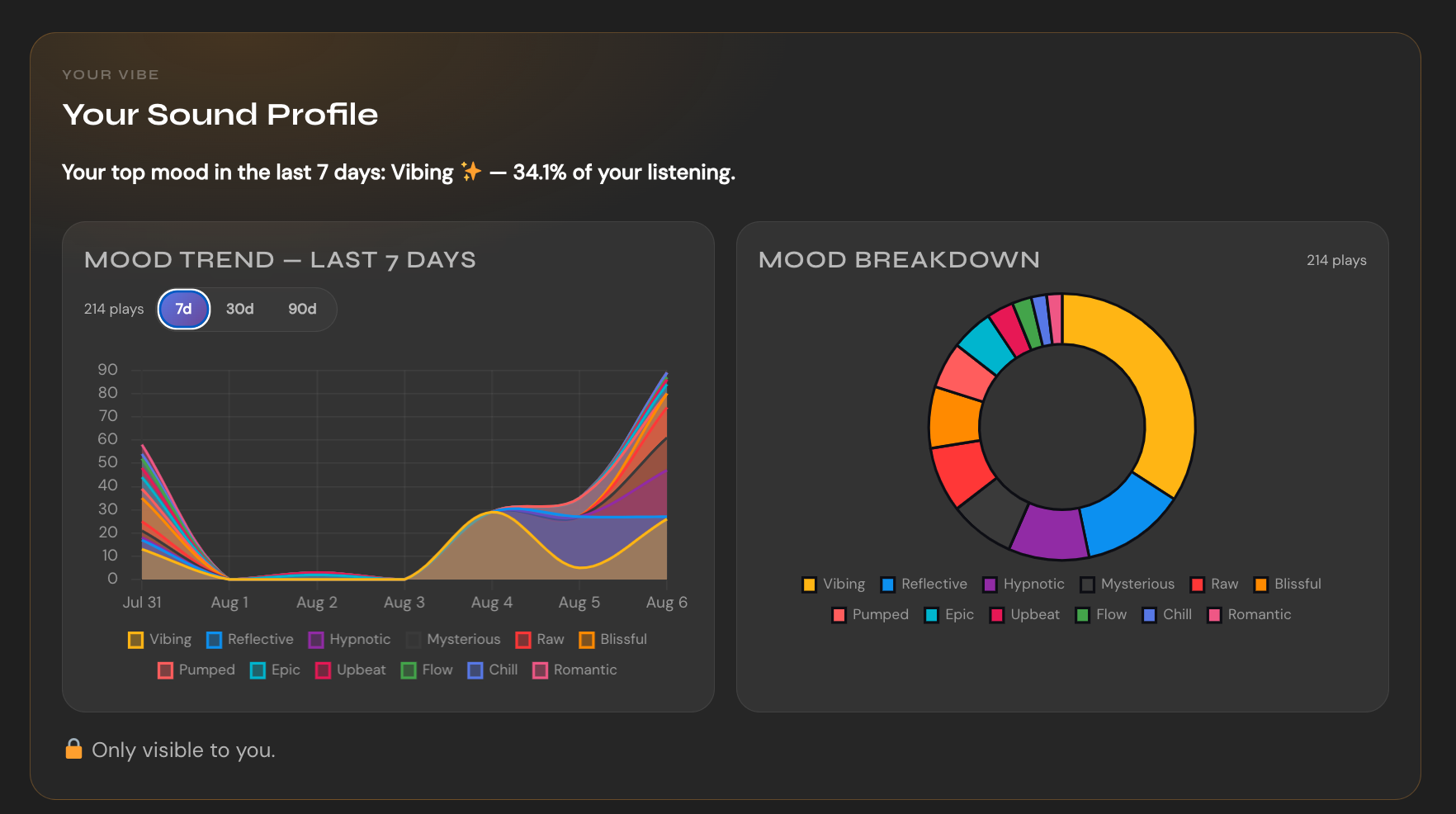
- Your sound profile — charts showing which moods you’ve been listening to most, and how that’s shifted over time.
- Your Forecast — a few suggestions for what to try next, and a plain-language reason for each one.
- Quick Launch — shortcut pills to your favourite apps, so you don’t have to hunt through menus every time.
- Recently Played & Favourites — a quick look back at what you’ve been enjoying.
- Token Activity — your rewards and listening-quota activity in one place.
- Friends — add friends by username, see who’s actively listening right now, and choose whether to share your own activity with them. See Virtual Rooms for the full picture.
- Preferences & Activity — where you set your mood icon and manage account settings, including the email and deletion options described above.
You don’t need to understand any of this in advance — everything on the page explains itself as you look at it. This section is just here so it doesn’t feel unfamiliar the first time you land on it.
Lighting
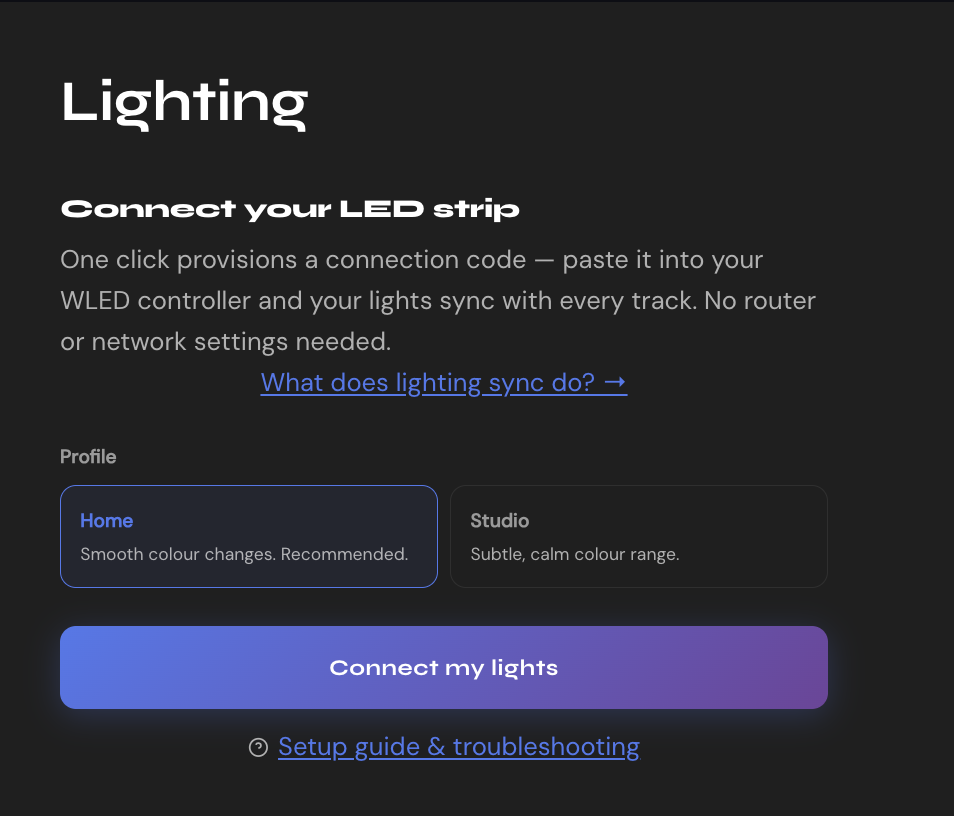
If you have compatible smart lighting, you can connect it to VIBESXS so your lights change along with the mood and music you’re listening to — turning any room into part of the experience. It works across most of the apps on the platform, wherever you see a lighting toggle.
Lighting connects through WLED, a free, open-source controller for addressable LED lighting — your lights need to be running WLED for VIBESXS to be able to reach them. If that’s new to you, that’s fine: the setup page walks through exactly what to install and how to connect it, step by step, so you don’t need to know anything about WLED going in.
Setting it up is a one-time process. Once connected, it stays connected — you just choose whether to sync it in for a given session.
FAQ / Troubleshooting
Audio won’t start
Work through these in order — most playback issues clear up before the last step:
- Refresh the page — a fresh load fixes the majority of stuck players.
- Check you’re signed in. Some apps play a short preview or nothing at all when you’re not.
- Check your remaining plays on Your Vibe — if you’re at 0 for the day or month, that’s why nothing’s playing, not a bug.
- On mobile, make sure your device isn’t in silent/mute mode, and check no other app or browser tab has grabbed exclusive control of audio.
- Some browsers block audio from starting on its own — tap the play button directly instead of waiting for autoplay.
Still stuck after all of that? Reach out through Still Need Help? below.
My session ended earlier than I expected
A few things end a session on purpose, and none of them are a bug:
- You’ve reached your play limit for the day or month — check Your Vibe to confirm, and see if an upgrade or a top-up fits what you need.
- Some apps let you set a session length yourself in advance — check the setup screen next time for a length or duration option before starting.
- In a Vibe Party Room, each track plays for a set few minutes before crossfading into the next — that’s by design, to keep a party’s pace moving, not a playback error.
- A Date Night Pass lasts a fixed two hours from the moment the date starts. The countdown in the lounge shows how long is left, and it can’t be extended.
If a session stopped unexpectedly and none of these explain it, let us know through Still Need Help? below.
Music stops when my phone’s screen locks
Whether playback carries on with the screen off depends on your phone’s browser:
- Chrome (Android and iPhone): the Immersive Player keeps playing when the screen locks or turns itself off.
- Safari on iPhone: playback can stop when the screen locks or auto-locks. This is a known limitation for now. If the interruptions bother you, open VIBESXS in Chrome instead.
- Other apps: we haven’t confirmed locked-screen playback in Playlist Builder, the Autonomous DJ or the DJ Mixer, so keep your screen on while you listen. A longer Auto-Lock time in your phone’s display settings helps.
- A phone call, another app’s audio, or pausing it yourself will still pause playback, as it normally does on a phone.
Still stopping in Chrome? Let us know through Still Need Help? below, with your phone model and browser.
A shared room link isn’t working
Applies to Vibe Rooms, Vibe Party Rooms, Vibe Spaces, and Shared Queues:
- Double-check the full link was copied and pasted — a link cut off partway won’t resolve.
- Make sure you’re signed in — being signed in is enough to join, but you do need an account.
- The host may have ended the session, or it may not have started yet — ask them, or check for a scheduled start time if one was mentioned.
- A saved replay link stays valid indefinitely, but a live link only works while that session is actually running.
It says the room is full
Vibe Party Rooms and Vibe Spaces cap out at 25 guests. If you’re seeing this, the host’s room is already at capacity — ask them to check who’s still connected, since someone who left without properly disconnecting can occasionally hold a spot briefly. There’s no way to join past the cap otherwise.
My partner can’t get into our Date Night room
A Date Night room only ever opens for the two accounts on the pass, so a few things have to line up:
- Your partner needs to be signed in with the same email address the invite was sent to. Forwarding the link to someone else, or to a different address, won’t let them in.
- Your partner can enter at your scheduled start time, not before. You, as the buyer, can open the room up to 15 minutes earlier to set up the music.
- The date begins when you start it with your partner in the room. You can start any time from the start time, up to 15 minutes later — if it hasn’t started by then, the pass stays unused and you can reschedule it.
- If you changed or re-sent the invite, only the newest one works — check that your partner is using that one.
- The lounge link appears on the Date Night page once setup opens, and we send both of you a reminder before the date.
Still stuck? Reach out through Still Need Help? below.
How do I reschedule my Date Night Pass or change my partner?
Open the Date Night page, where your passes are listed, and choose Set up date on the pass. You’ll also find that link in the “Your Date Night Pass is ready” email we send after you buy.
- Reschedule any time before the date starts, to any future date and time — your partner is told about the change. An unused pass doesn’t expire.
- To invite someone different, or to re-send an invite, do it before the date starts. Once the date is under way the partner can’t be changed.
Chat messages aren’t showing up or the chat won’t scroll
Refresh the page first — chat reconnects automatically once the page reloads. If you’re on a slow or spotty connection, a message can take a few seconds to appear for everyone in the room, not just you. If refreshing doesn’t help, let us know through Still Need Help? below.
The Autonomous DJ isn’t playing what I expected
Open the fine-tune settings before you start a session — genre, version, and energy preferences all shape what gets picked, and they’re worth checking each time if your taste has shifted. A brand-new session also takes a few tracks to find its footing, especially on an unfamiliar mood. If it’s still consistently off after that, let us know through Still Need Help? below.
I don’t see the option to buy a Party Pass, Space Pass or Date Night Pass
A few reasons this happens:
- You’re not signed in — purchasing any pass requires an account.
- You already own a Party Pass or Space Pass — check the Your Passes section on Your Vibe; you’ll see its status there instead of a buy button. (The Date Night Pass is bought from the Date Night page, where your dates are listed.)
- Purchases are occasionally paused platform-wide for a short time while we resolve something — if so, the page will say so directly instead of showing a price.
I paid for a pass but don’t see it yet
Check your email for a receipt from Stripe first — that confirms the payment itself went through. Then check the Your Passes section on Your Vibe; it can take a minute to appear after checkout. Still not showing after a few minutes with a receipt in hand? Reach out through Still Need Help? below with your receipt so we can look into it.
Questions about my token balance
Your current balance and recent activity are always visible on Your Vibe, and from the token balance link in the profile menu. If something there looks wrong, let us know below.
My lighting isn’t syncing
Work through these in order:
- Check that the lighting toggle is switched on for your current session — it’s off by default and needs to be enabled each time.
- Confirm your lights are still powered on and connected to the same WiFi network as when you set them up.
- If your router or lights were restarted recently, their network address can change — revisit the lighting setup page to reconnect.
I’m not receiving my login code
Check spam/promotions folders first, and confirm you typed your email correctly — a small typo sends the code nowhere. Request a new code if a minute or two passes with nothing, since each one expires after a short window. If it keeps not arriving, let us know below.
How do I change or delete my account?
Both are handled from Your Vibe, under Account Settings — see the Account & Login section above for the full walkthrough.
Can I book an in-person DJ for my Party Pass event?
Your Party Pass already includes free listening for every guest via our Autonomous DJ, but if you’d rather have a real, in-person DJ too, see Find a Live DJ for a starting point — VIBESXS isn’t affiliated with any service listed there.
Can I play Spotify, Apple Music, or my own music during my Party Pass or Space Pass event?
No. Every Party Pass and Space Pass session plays music exclusively from the VIBESXS catalogue, through our own apps — the Autonomous DJ, Vibe Party Room, or Vibe Space. Because of that, you don’t need any separate public-performance or streaming license as host; that coverage is between VIBESXS and its catalogue, not something you need to arrange. VIBESXS doesn’t provide access to, or have any arrangement with, Spotify, Apple Music, SoundCloud, YouTube, or any other external music service, and playing music from one of those (or a personal library) during your session — even routed through the same room or sound system — is against our Terms of Service, regardless of what you’re personally licensed to use elsewhere.
How do I plan everything for my Party Pass event?
Every Party Pass includes the Vibe Party Planner, a dedicated planning page with a Vibe Calendar, a guest list with RSVP tracking, a shared checklist for anything beyond the music (venue, catering, decorations, and more), and Collaborators — anyone you trust can be added to help manage the planning checklist, though the guest list and join requests always stay with you as host.
Is there a one-page summary of everything Party Pass includes?
Yes — see the Party Pass flyer for a single-page overview of the Autonomous DJ, the Vibe Party Room, free listening for up to 25 guests, the Vibe Party Planner, and everything else included.
Vibathlon Duet (Beta)
Duet is VIBESXS’s shared Vibathlon mode and is now in beta for signed-in VIBESXS players. Some details may change as players try it. Open Vibathlon Duet.
What is Duet?
You and a partner each play the same eight-game course on your own device. You share a scheduled start and course order, while your game progress and score are saved separately.
Invite a partner
Choose an accepted VIBESXS friend or create a private one-use invite code to share. Codes expire after ten minutes. Duet has no public lobby or stranger matchmaking.
Choose Classic or Turbo. Both players accept, complete their own game checks and press Ready. When both are ready, a shared countdown starts the course.
Play together
You can play each leg at your own pace, see your partner’s leg progress and send one of the available reactions. Each player has their own checkpoint and can resume their own run.
When both players finish, Duet shows the shared result. Your own scores and Duet history are in Your Vibe → Game Stats.
Leave or reconnect
Leaving or an expired inactive Duet ends the shared match. Your own private partial result is retained; a partner’s temporary connection problem does not immediately end your run.
Privacy
Duet pairs signed-in players through an accepted VIBESXS friendship or a private invitation. Match and score history stays private by default. A joint certificate requires both players’ consent. The paired public leaderboard is not available during beta.
Vibathlon Trials (Free Taster)
Trials is the free taster of Vibathlon Solo. You can play the first four games as a guest, with no account. Try Vibathlon Trials.
What is Trials?
Four quick games: Mood Ring, Vibe Shuffle, Rapid Pace and Mood Memory. They are the first half of the eight-game Solo course, so you get a feel for Vibathlon before you decide to sign up. Each game starts with a short how-to.
How it works
Press START HERE (or the Mood Ring icon) to begin. You can take up to 90 minutes in total. When the fourth game ends you reach a results screen with your score so far.
Keep your score
Choose Create an account or log in on the results screen. Accounts are free and need no card. Your four games become the first half of your Solo run and you carry on from game 5 (Mood Guesser, Vibe Challenge, Mood Match, then Sprinter). Your results and history are then in Your Vibe → Game Stats.
If you already have a Solo run in progress, that run is kept and the trial result is not added.
If you stop
Without an account your score is not saved. We hold your finished trial for 60 minutes in the same browser so you can sign up, then delete it. Choosing Stop here means it is not saved.
Play again
You can start a new trial one hour after you last started one. There is also a daily limit on trials from the same network.
Refreshing or losing your connection
Your trial carries on from where you were, in the same browser. It uses one small cookie to do this. Use the same browser when you sign in.
Music
Music is optional. If you turn it on it uses your free daily song plays, and the games work without it.
Privacy
You do not need to give a name or email to play. We keep only your progress and scores for the trial, plus scrambled values used to stop automated abuse. See the Privacy Policy and Cookie Policy.
Vibathlon Battle (Beta)
Battle is VIBESXS’s one-on-one Vibathlon mode and is now in beta for signed-in VIBESXS players. Some details may change as players try it. Open Vibathlon Battle.
What is Battle?
You and a friend each play the same ten-game course on your own. The games are Mood Ring, Mood Guesser, Vibe Shuffle, Rapid Pace, Mood Memory, Vibe Challenge, Trivia, Mood Match, Mysteria and Sprinter.
Your answers, checkpoints and score belong to your own run. During play, you can see your friend’s progress, but neither player sees the other’s score until both runs are finished.
Invite a friend
Choose a friend from your accepted VIBESXS Friends list, or create a private invite code to share. Invite codes expire after ten minutes and can be used once. Battle has no public lobby or stranger matchmaking.
Both players accept the match, complete the game checks and choose Ready. When both are ready, a shared countdown starts the course.
Play the course
Each game explains its controls before it starts. You can return to your saved progress while the match is active; the run clock keeps counting. Your friend’s progress indicator shows their leg and whether they are playing or finished, but never their score.
When the available content allows it, each player receives different Trivia questions and Mysteria song targets. Keep answers and targets to yourself during a match.
Finish and results
Battle verifies each player’s results. After both players finish, the game reveals the totals and leg-by-leg comparison. The clear winner receives a private winner medal in the Trophies shelf under Your Vibe → Game Stats. A tie has no winner medal. Medals are recognition only; they do not award tokens, allowance or paid benefits.
Your scores and match history are in Your Vibe’s Game Stats.
Leave or reconnect
Leaving an active match ends it as no contest. Your private partial run is retained, but neither player receives a win. A lost connection is not treated as a forfeit win. If the match is still active, return to Battle to resume your saved run.
Block a player
Use Block player on a paired match to prevent future Battle invitations between you and that player. Blocking an active match ends it as no contest. You can remove a Battle-scoped block with Unblock player. A site-wide block may also prevent pairing.
Privacy
Battle matches and partial runs are private. The experience does not publish your account name or private score. Any future public result or sharing feature would require a separate release decision and privacy controls.
Music-Q (Beta)
Music-Q is VIBESXS’s fun musical challenge for one player and is now in beta for signed-in VIBESXS players. Some details may change as players try it. Open Music-Q.
What is Music-Q?
Music-Q helps you notice how music works: the beat, how fast it goes, high and low notes, how many layers play together, how a song is built and how instruments sound different. Each question explains one idea, mostly with a picture you can read, so you do not need to read music. It is for fun, so do not take your score too seriously.
How it works
A challenge is 20 questions in four short rounds. Pick a visual mood to set the colours, then choose Start Music-Q. Choose an answer. If your first try is not right, you get a hint and a second try. You can skip any question. After each round, a short optional activity lets you try the idea yourself, then you move on.
There is no timer. If you stop for five minutes the challenge ends, and if you reload the page you pick up where you left off.
Scoring
A first-try answer scores 100 and a second-try answer scores 60. Your total is out of 2,000, and you earn a Silver, Gold or Platinum keepsake at 1,000, 1,300 and 1,600. The score only shows how this one game went. It is not a measure of intelligence or of how musical you are.
Sound is optional
Every question works with the sound off. Some questions have short sound clips you can play yourself, and nothing plays by itself. If you would like music while you play, open the round G button to choose your own VIBESXS songs; it is quiet by default. Songs you play from there use your usual plays.
Your results are private
There is no leaderboard, and Music-Q does not spend or award tokens. Your result keepsake is yours, and you can print it from the end screen.
Your Music-Q card in Your Vibe → Games shows how many challenges you have finished, your personal best and your ten most recent keepsakes. If you leave a challenge unfinished, you can pick it up from there too, as long as it has not expired.
Using it with a keyboard or screen reader
You can play with a keyboard and a screen reader. Pictures have text descriptions, and motion is reduced if your device is set to reduce it.
Still Need Help?
If your question wasn’t covered above, our support team is glad to help directly.